
An external NTFS drive connects to a Mac without any trouble. macOS can see it and show its files in Finder, but it usually will not let you write data back. The most common advice is to install an NTFS driver.
That is what I was looking for too. But I eventually realized that the question is not only how to enable NTFS writes. The more important question is how much system access should be granted for one basic file operation.
In the end, I chose a different architecture: macOS does not work with NTFS directly. A small Linux virtual machine receives the drive, Linux works with the filesystem, and the Mac gets access to the files back through Finder over the network.
The short version: what the solution does
To write files from a Mac to an NTFS drive without a system driver, pass the drive to an isolated Linux VM. Linux mounts NTFS and exposes a shared folder over the network, while macOS sees it as an ordinary network drive. This keeps an NTFS driver out of macOS, avoids changing the security policy, and confines the required privileges to a separate environment.
Why I did not want to install Paragon NTFS
Almost every guide gives the same answer: install Paragon NTFS or a similar product. It is an understandable approach—the driver integrates with the system and adds NTFS write support to macOS.
On Apple Silicon Macs, some system drivers require changing the Security Policy and allowing Reduced Security. Paragon may be an excellent product, and for many users that is a reasonable trade-off.
What stopped me was a simple question: why should I weaken macOS protection just to write one file to an external drive?
This is not a claim that Reduced Security automatically makes a system unsafe. It is a question of proportionality. If the same task can be solved without changing the system’s baseline protection policy, that is the option I prefer.
The “free” app that starts with a free trial
The next obvious place to look was the Mac App Store. I installed several apps that promised free NTFS write support.
The first launch showed Start Free Trial. The next step was a subscription costing dozens of dollars per year.
I have no problem with paid software. If a product solves a real problem, paying for it is reasonable. But when an app calls itself free, I expect its basic function to be available without a subscription, with paid plans reserved for additional capabilities.
I am especially cautious when an unfamiliar app asks for serious disk access at the same time. In that situation, the question is not only the price. It is also the level of trust in the developer and the consequences of a possible mistake.
So I deleted those apps and started looking at driver-level and open-source solutions.
Why a GitHub repository is not enough
Open source is an important advantage, but the existence of a repository does not automatically justify giving software access to every disk.
A filesystem component operates very close to the data. A mistake there can mean more than an application crash: it can damage the filesystem, lose files, or create problems with the drive itself. For me, that makes trust in an NTFS driver a much more serious question than trust in an ordinary utility.
A driver also has a different level of system impact. It runs inside macOS and participates in the operating system’s interaction with storage. If a solution requires broad system privileges, the confidence in its quality, maintenance, and security model needs to match that level of access.
I did not have that level of confidence. So I decided not to add an NTFS driver to macOS at all.
Why a system driver is especially awkward with an AI agent
There is another factor that matters to me. I now delegate part of my technical work to AI agents.
A system driver may look like an acceptable risk on its own. An AI agent can also be a useful and controllable tool on its own. But the combination is different:
- the AI agent receives a task and executes a command;
- the command can reach the system driver;
- the driver can reach the disks;
- the agent identifies the wrong drive;
- an external instruction contains prompt injection;
- or the agent simply chooses the wrong approach.
The probability of any one problem may be small. But the cost of an error—deleted, overwritten, or corrupted data—is too high.
That leads to a simple practical rule: if a task can be solved without extra privileges in macOS, do not grant them. This does not mean AI agents cannot be trusted. It means the architecture should limit the consequences of a mistake even when a mistake happens.
Who says macOS has to understand NTFS?
At some point, I changed the way I framed the problem.
At first, it was: “How do I make macOS write to NTFS?”
Then it became: “How do I safely move files from a Mac to an external NTFS drive?”
Those are not the same problem. In the second version, macOS does not need to understand NTFS. It only needs to pass files to an environment that can.
Linux has supported NTFS workflows for a long time. So I moved that responsibility into an isolated Linux VM:
- The virtual machine receives the USB drive.
- Linux mounts the NTFS partition.
- Linux exposes the required folder over a network protocol.
- macOS connects to that folder in Finder.
- Files travel over the network, while Linux performs the actual write to NTFS.
From macOS’s perspective, this is no longer an unknown filesystem. It is an ordinary network folder.
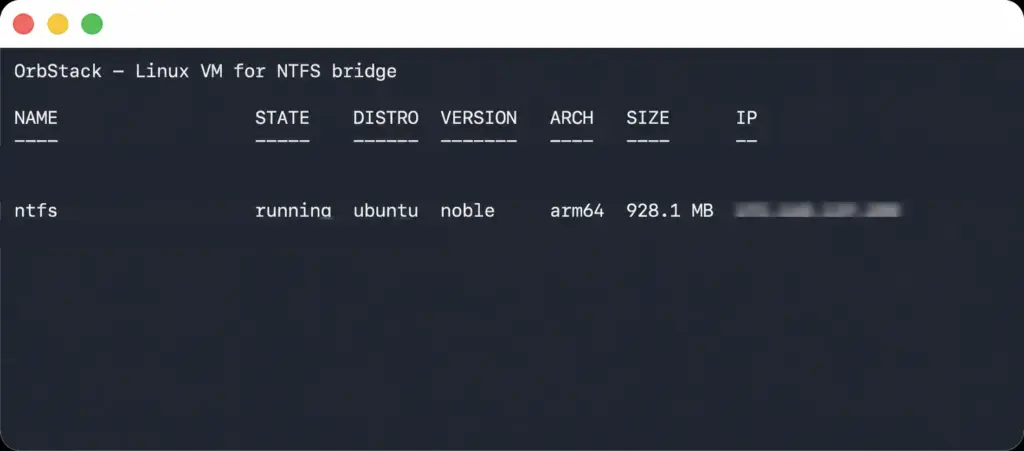
ntfs VM running and receiving the USB drive.What this architecture provides
The main benefit is that NTFS stays outside macOS. There is no need to install a system driver, change the Security Policy, or switch to Reduced Security for a basic file operation.
It also makes the boundaries of responsibility clear. The Linux VM is responsible for NTFS. macOS is responsible for ordinary network-folder access. If an AI agent performs automation, it can be confined to the virtual machine and a specific folder instead of receiving a direct path to every local Mac disk.
This is not magic protection against every problem. You still need to identify the correct USB device, restrict sharing, keep backups, and detach the drive safely. But the risk can be localized instead of extending into the whole operating system.
There are trade-offs: the VM uses some resources, network access can be slower than direct mounting, and setup is more involved than installing one app. That may be excessive for a one-time copy. For regular work with important data and automation, the control is worth it to me.
The finished solution: kidi-macos-ntfs-bridge
To turn the idea into something usable, I built kidi-macos-ntfs-bridge on GitHub.
The project targets Apple Silicon and uses OrbStack with Ubuntu ARM64. It passes one specific USB device to the VM, mounts NTFS in Linux, and can expose the drive to Finder through authenticated SMB.
The key detail is the read-only gate before writing. The bridge checks the USB identity, serial number, model, transport, partition, and filesystem UUID. Only after those checks pass does it allow a read/write mount.
The workflow is deliberately conservative: if it detects ambiguity, a dirty or hibernated NTFS state, an I/O error, or a USB disconnect, it stops instead of guessing. The bridge does not format, repair, or force-mount the target drive.
The first setup requires an Apple Silicon Mac, OrbStack with USB passthrough support, and a direct USB connection. After that, the user works with files in the familiar way—open the SMB folder in Finder and drag files into it.
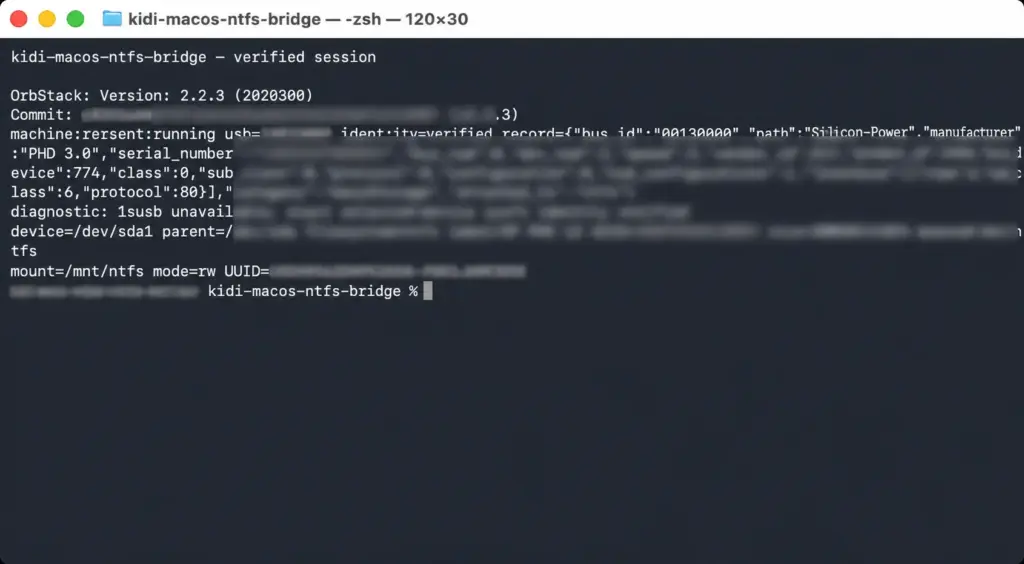
rw mount.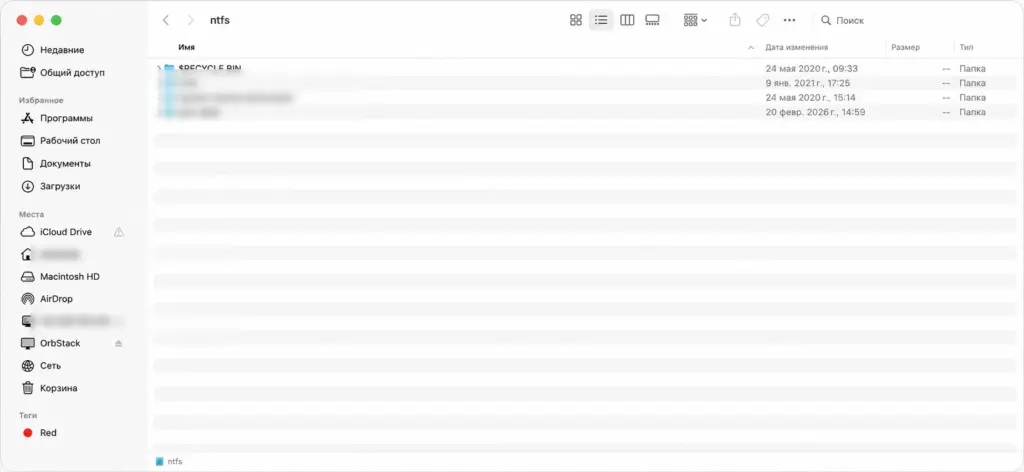
AI is good at answering “how,” but not always “what”
I did not arrive at this architecture immediately. AI kept sending me back to familiar options: Paragon, macFUSE, an NTFS driver, or another App Store application.
Those are logical answers to “How do I add NTFS write support to macOS?” But they do not answer “Should I add this capability to macOS at all, and at what cost?”
I came up with the idea of moving all NTFS work into an isolated Linux VM myself. Only then did I give it to an AI agent as a constrained implementation task: here is the architecture, here are the security requirements, and here is what must never happen—now implement it.
To me, this is a good example of modern development. AI is very fast at answering “How should this be built?” But “What should be built?” is still a human question.
Conclusion
If you only need to copy a few files to an NTFS drive occasionally, a commercial driver may be the simplest option. But if your priorities are keeping macOS’s security policy unchanged, avoiding unfamiliar system components, and reducing the impact of automation mistakes, changing the architecture is worth considering.
In my case, the Mac did not learn to work with NTFS directly. That is fine. Linux handles NTFS inside the virtual machine, while macOS sees only a network folder in Finder.
Sometimes the best way to add a capability to a system is not to add it to the system at all.
Important: Back up any important data before working with its only copy. Any workflow involving a virtual machine, an external drive, and a filesystem should be tested on your own hardware.